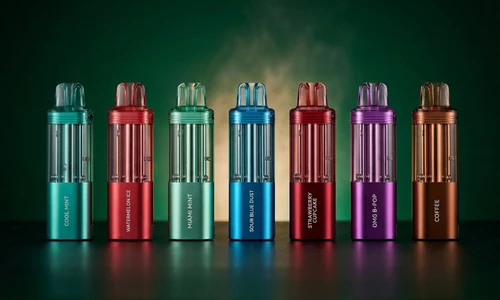


If you just picked up a Foger Vape and are wondering how to charge your Foger Vape for the first time, you are in the right place. Unlike most disposables that charge directly through a standard USB port, the Foger Switch Pro uses a unique two-part charging system, while the Foger Bit 35K relies on a USB-C port at the base of the device. Each model charges differently, and knowing the correct steps keeps your device performing at its best and your battery lasting longer.
This guide covers everything you need: how to charge a Foger Vape from the basics all the way through charging specs, safety guidelines, indicator light meanings, and troubleshooting fixes for when something does not go as planned.
Explore Our Collections
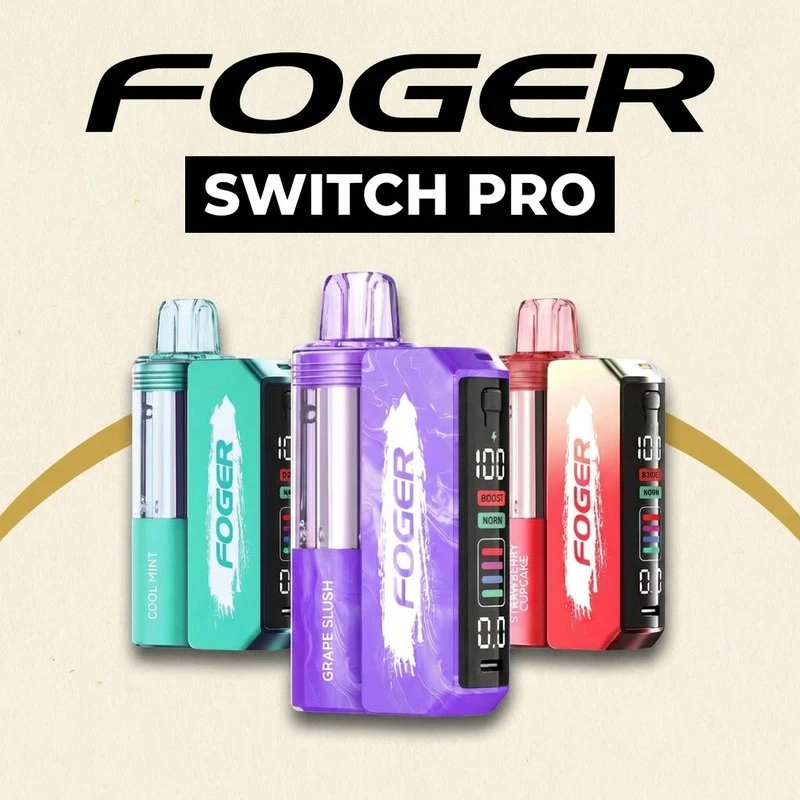

Table of contents
Charging at a Glance: Foger Switch Pro vs. Foger Bit 35K
Before getting into the step-by-step instructions, here is a quick side-by-side reference for both models. The pod half never needs charging; only the battery unit does. Our Foger pods explained guide covers how the two halves work together.
|
Spec |
Foger Switch Pro Kit |
Foger Bit 35K |
|
Charging Method |
Foger Vape charging dock (USB-C) |
USB-C port (bottom of device) |
|
Battery Capacity |
850mAh dock + 200mAh pod |
850mAh rechargeable battery |
|
Charging Port |
USB-C on the dock |
USB-C on the bottom of the device |
|
Recommended Charger |
5V / 1A (10–30W max) |
5V / 1A (10–30W max) |
|
Dock Charge Time |
~45–60 minutes (dock only) |
N/A |
|
Pod Charge Time |
~15–25 minutes |
~45–60 minutes |
|
Full System Time |
~1 hour (dock + pod simultaneously) |
~45–60 minutes |
|
Charge Indicator |
OLED display + lightning bolt icon |
OLED screen + solid light at 100% |
What You Need Before You Start
Gather these items before you begin:
-
Your Foger Switch Pro Kit (dock + pod) or Foger Bit 35K device
-
A quality USB-C cable — use the one included in the box or a standard USB-C cable from a reputable brand
-
A reliable power source: a wall adapter (5V/1A), a laptop USB port, or a desktop USB port
-
A flat, non-flammable surface to set your device on while it charges
|
IMPORTANT |
Foger devices do not come with a charging adapter in the box. Always use a 5V/1A charger. Fast chargers designed for smartphones operate at much higher wattages and can damage your battery over time. |
How to Charge the Foger Switch Pro (Step-by-Step)
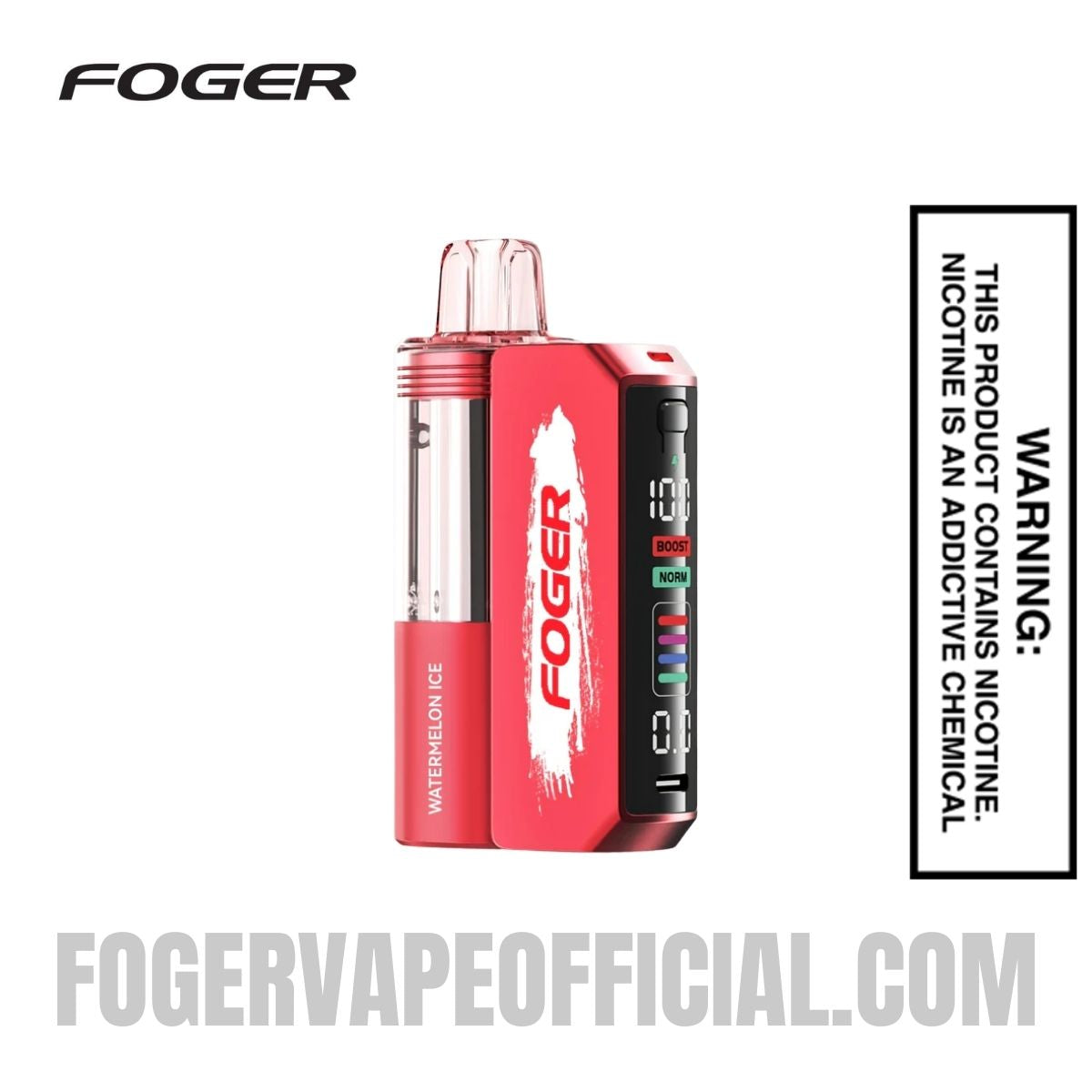
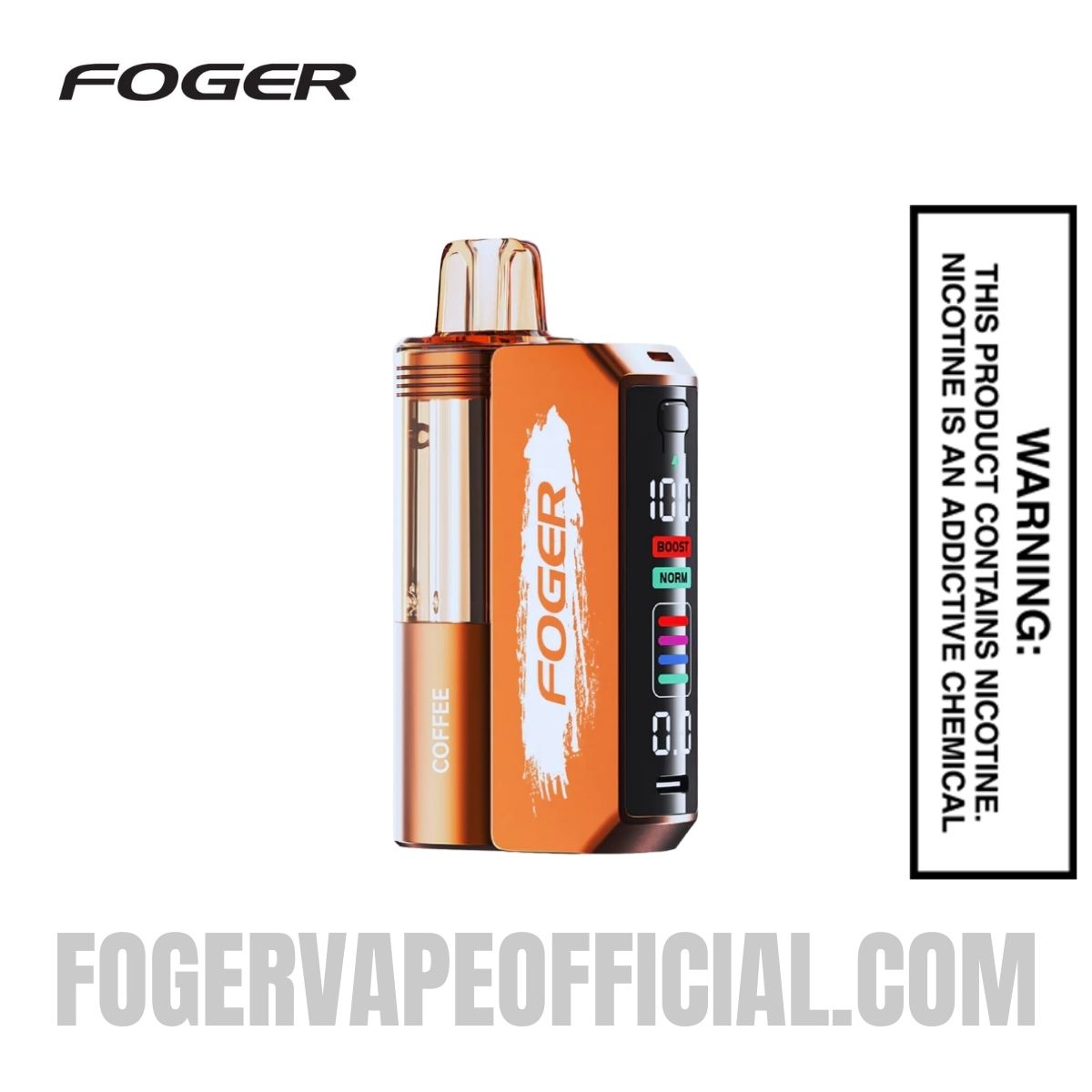
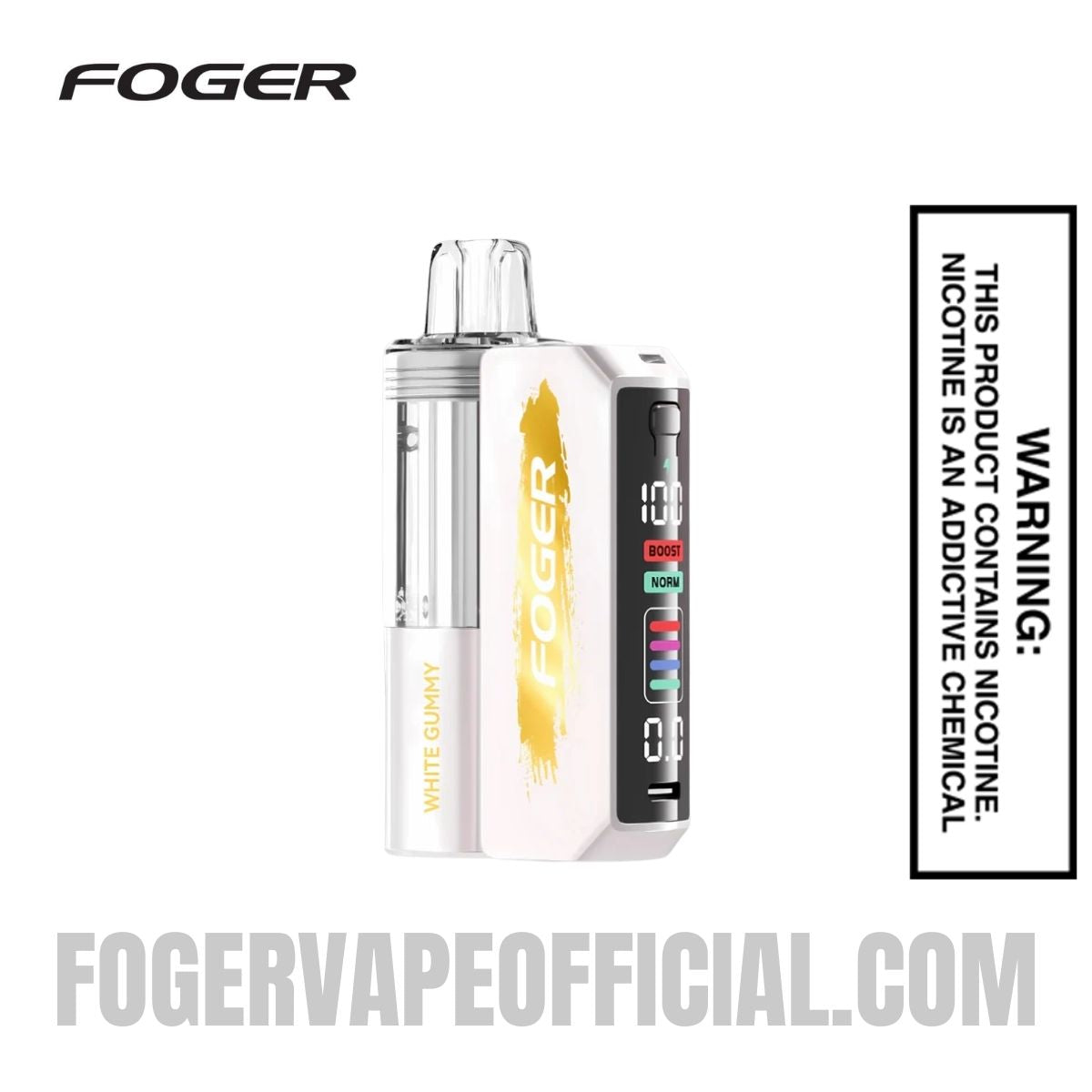
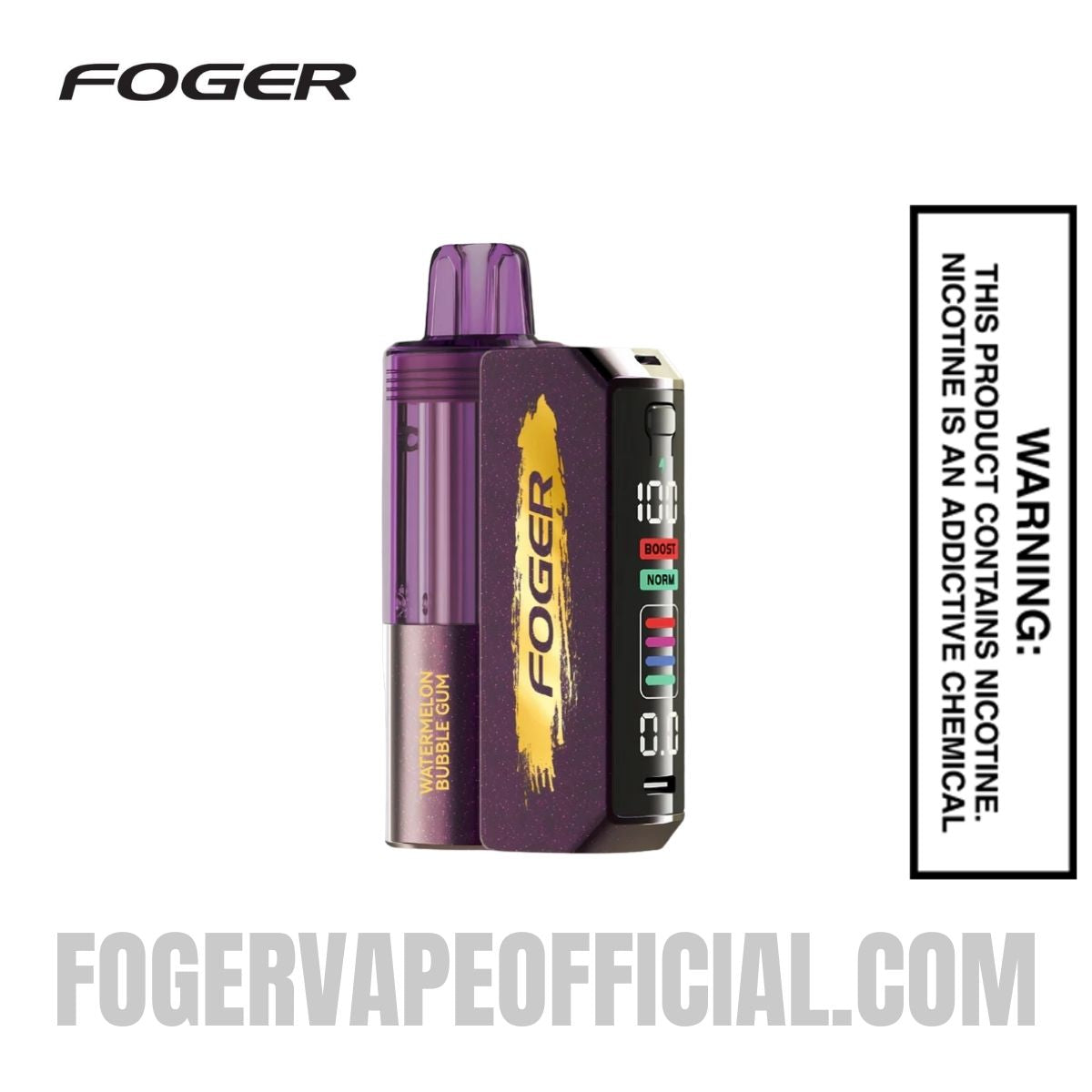
The Foger Switch Pro uses a Foger Vape charging dock system — a two-part design where the dock charges separately from the pod. Here is how to do it correctly.
Shop Foger Switch Pro kits
Step 1: Charge the Dock
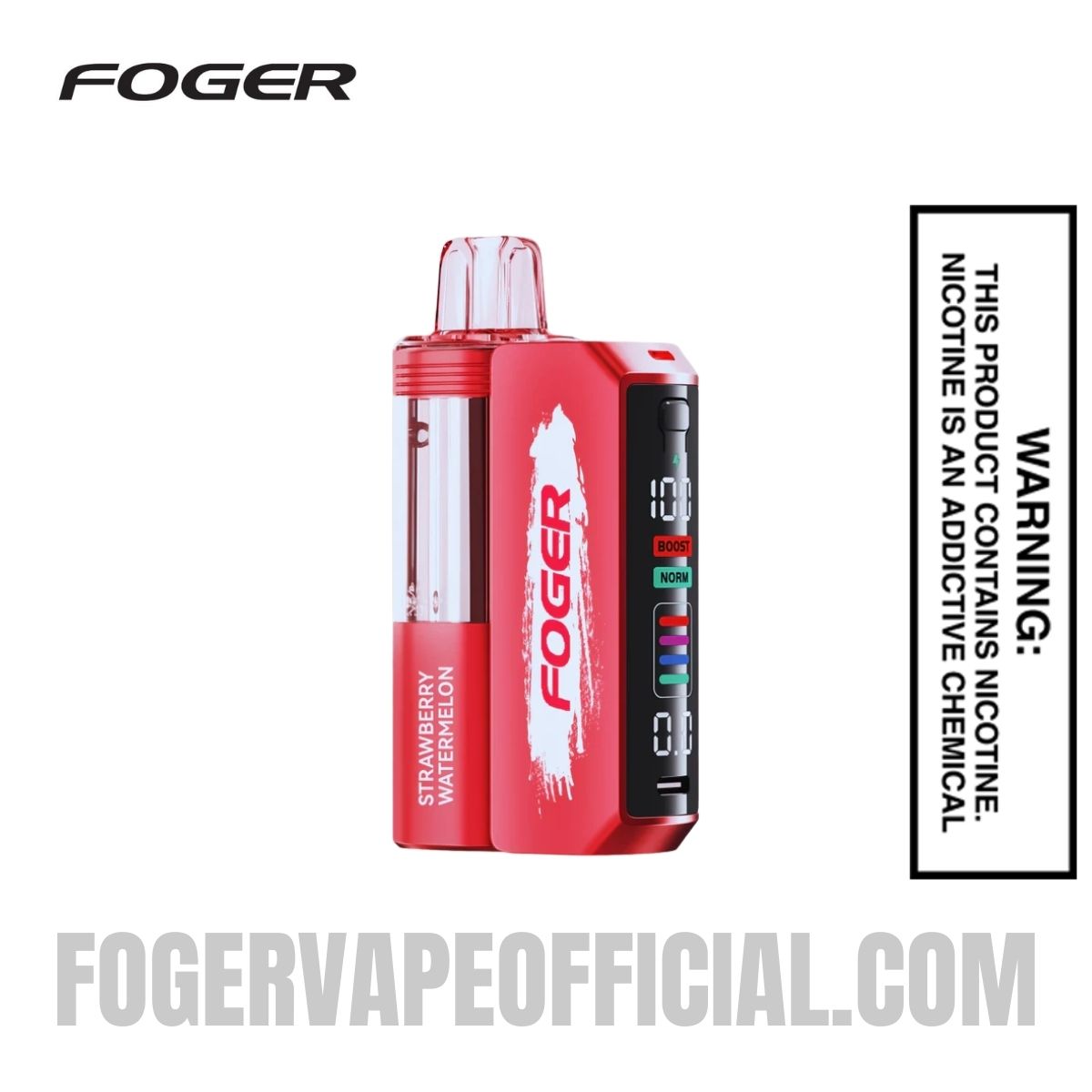
The Foger Vape charger dock is the battery powerhouse of the Switch Pro system. It carries an 850mAh battery that powers the pod. To charge it:
-
Locate the USB-C port on the bottom of the charging dock, just below the OLED display screen.
-
Insert a USB-C cable firmly into the port. You should feel it seat securely — a loose connection will interrupt charging.
-
Plug the other end into a wall adapter, laptop USB port, or USB hub. A wall adapter provides the most stable charge.
-
The OLED screen on the dock will turn on and show a battery percentage. Watch for this to confirm charging has started.
-
Wait approximately 45 to 60 minutes for the dock to reach 100%. The battery percentage on screen will climb steadily.
Step 2: Attach the Pod to the Dock for Charging
-
Once the foger charger dock has power, you can charge the pod. The Foger Switch Pro Pod has three magnetic metal pins at the bottom.
-
Snap the pod onto the dock. The magnets will align the pins automatically — you will feel a gentle click.
-
A lightning bolt icon will appear on the dock's OLED screen, confirming the pod is receiving a charge.
-
The pod's 200mAh battery takes approximately 15 to 25 minutes to charge fully.
-
When the lightning bolt icon disappears from the screen, the pod is fully charged and ready to use.
|
PRO TIP |
You can charge both the dock and the pod at the same time. Simply plug the dock into power while the pod is already attached. This takes approximately one hour for the full system and is the fastest way to get back to full charge. |
Step 3: Confirm Full Charge and Disconnect
Once charging is complete, the OLED screen will show 100%, and the lightning bolt icon will no longer be displayed. Unplug the USB-C cable from the dock and remove the device from the charging surface. Your Foger Switch Pro is ready to use.
How to Charge the Foger Bit 35K (Step-by-Step)
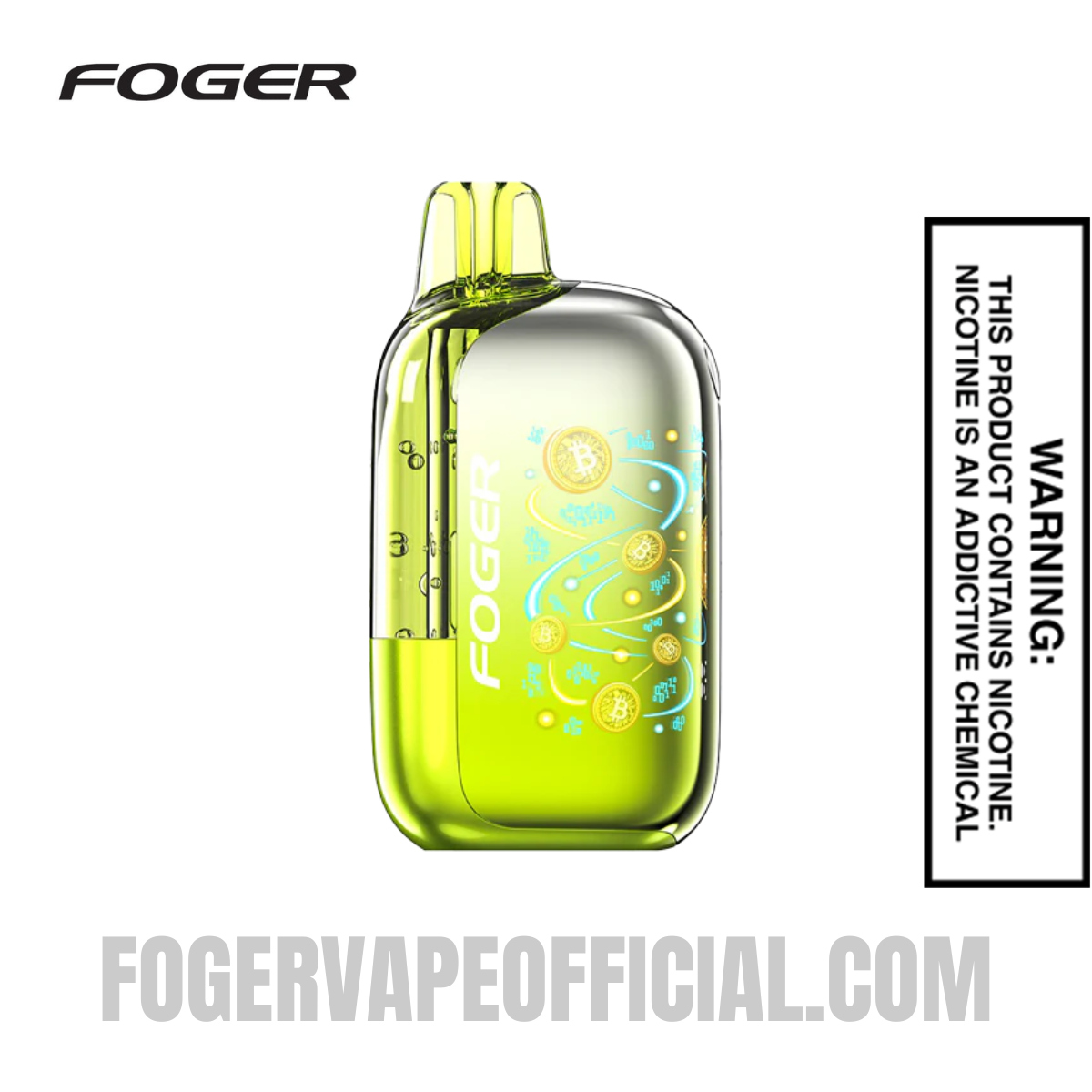
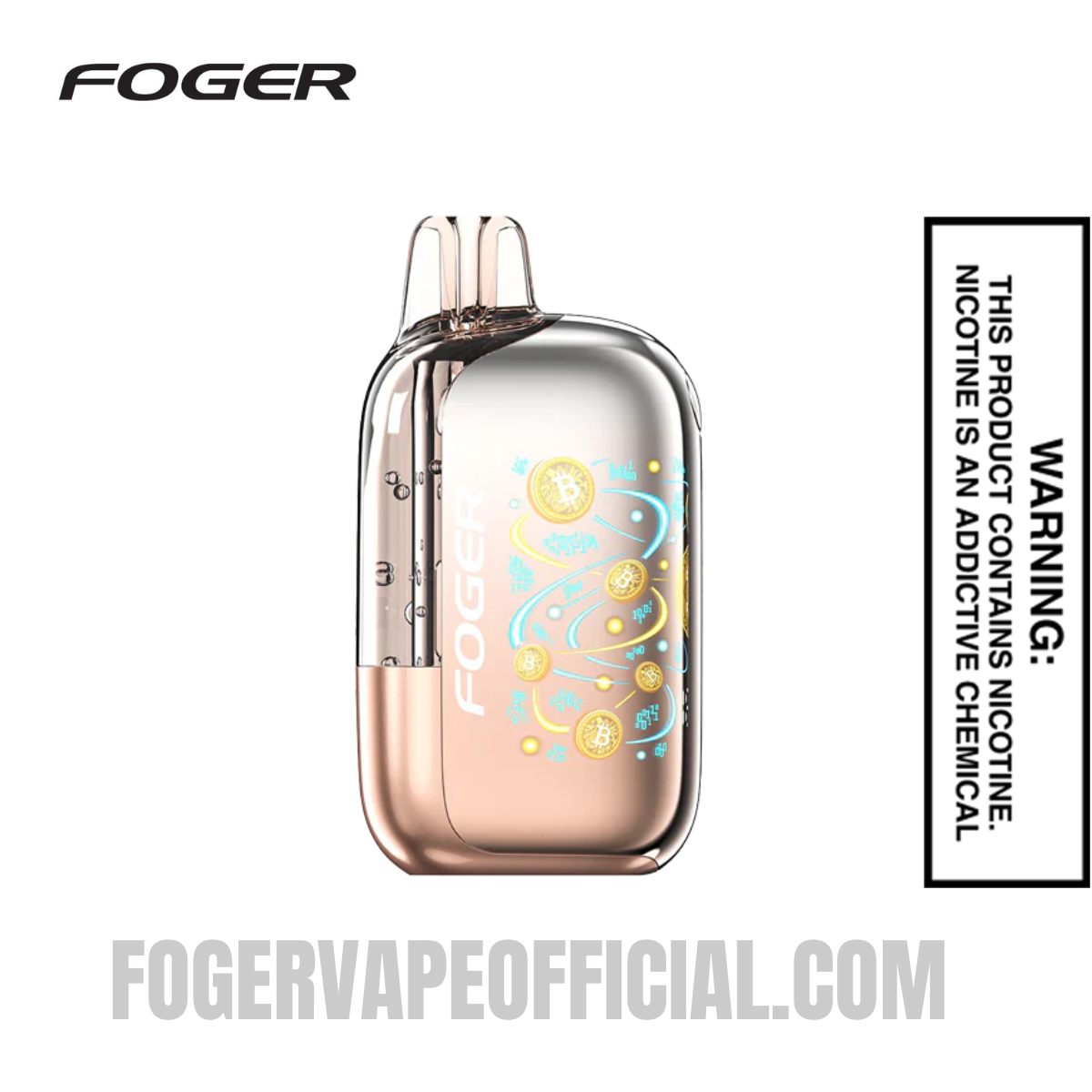
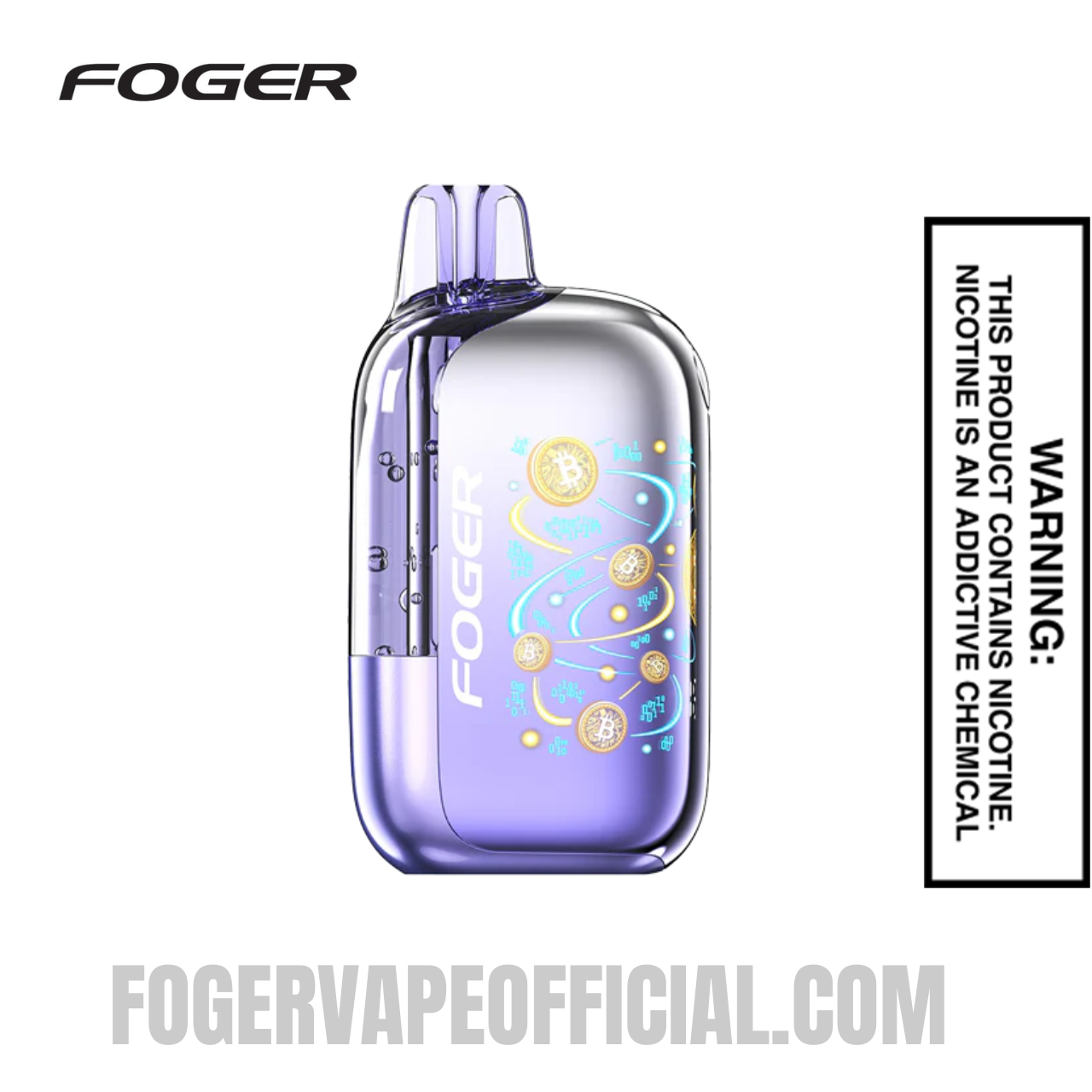
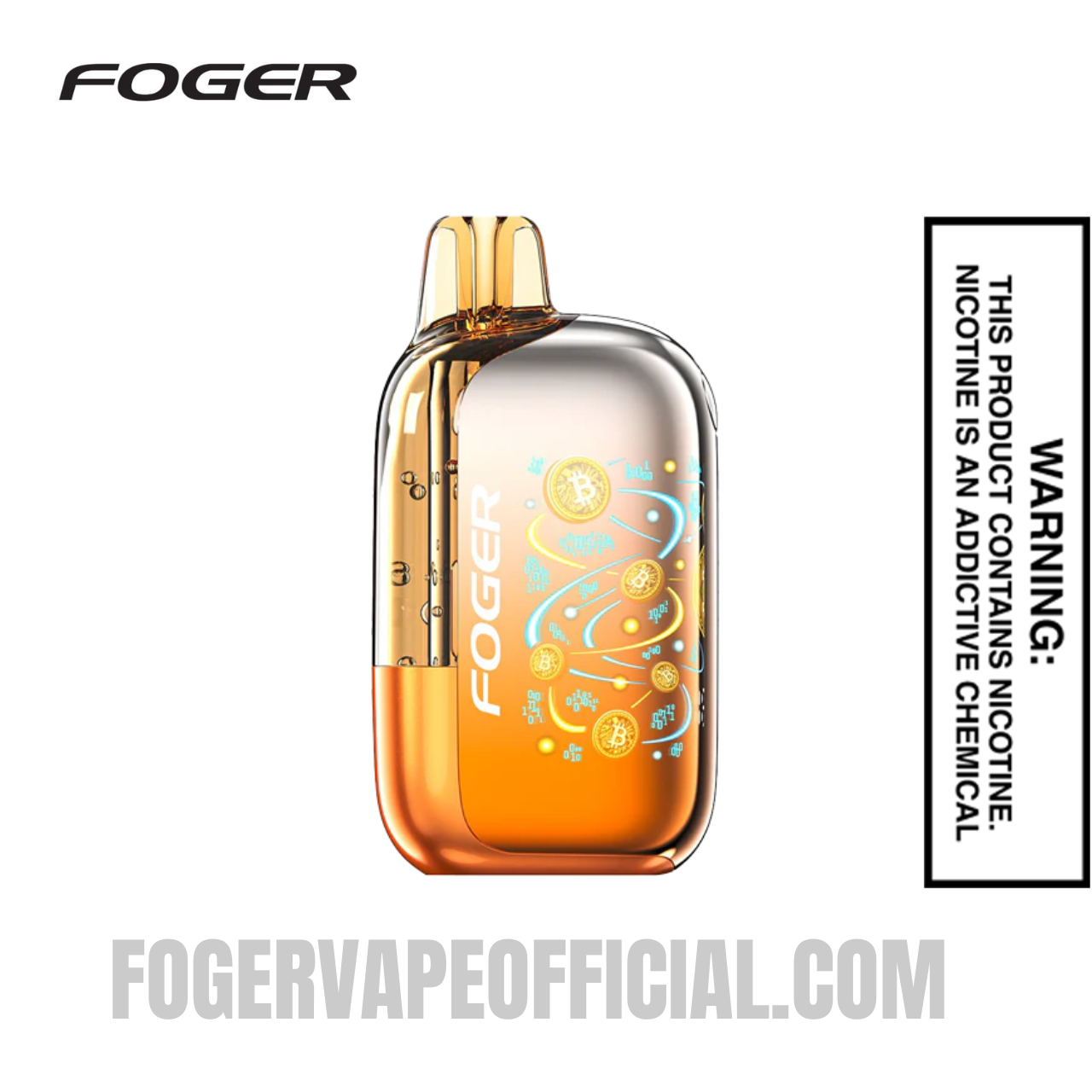
The Foger Bit 35K Vape is a self-contained device with an 850mAh rechargeable battery. There is no separate dock involved. Learning how to charge the Bit 35K is straightforward.
-
Flip the Bit 35K upside down and locate the USB-C charging port at the bottom of the device.
-
Gently remove any rubber dust cover over the port before inserting the cable.
-
Insert the USB-C cable firmly. If you feel resistance, do not force it — check the orientation of the cable.
-
Connect the other end of the cable to your power source.
-
The OLED screen on the Bit 35K will light up and display the current battery level as a percentage.
-
Wait approximately 45 to 60 minutes for a full charge. The screen will show 100%, and the charging icon will disappear, or the indicator light will stay solid when complete.
-
Unplug the cable and store the dust cover back over the port.
Shop Foger Bit 35K flavors
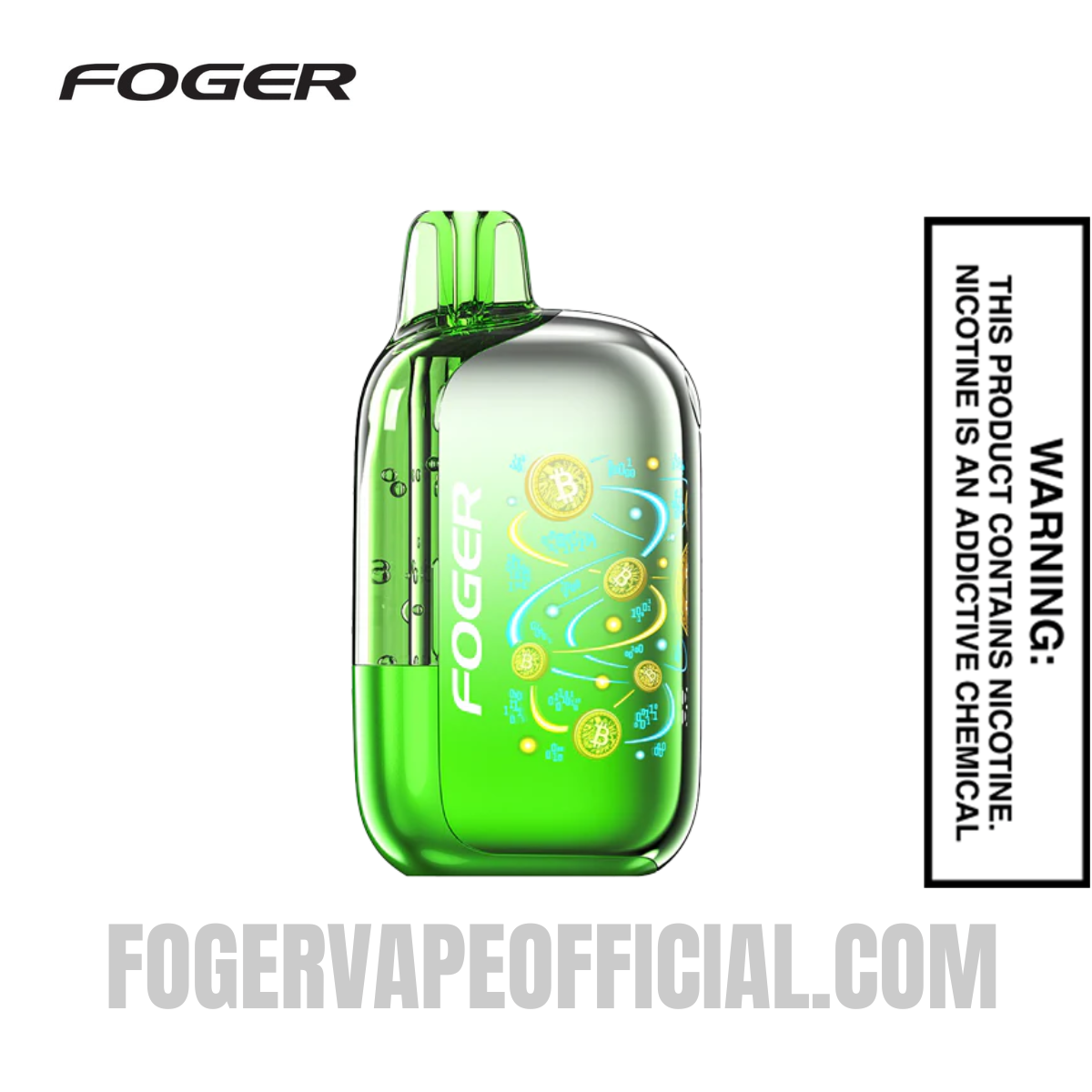
Foger Vape Charging Safety Tips
Following safe charging practices keeps your vape device working well and prevents potential issues. Apply these rules every time you charge.
-
Use a 5V/1A charger only. Stay within a 10–30W output range. High-wattage fast chargers used for modern phones push too much current through the battery.
-
Never charge overnight or leave your device unattended for extended periods. Unplug as soon as charging is complete.
-
Always charge on a flat, hard, non-flammable surface such as a desk or countertop. Avoid charging on beds, couches, or fabric surfaces.
-
Keep the charging port clean. Use a dry cotton swab or wooden toothpick to gently clear lint, dust, or pocket debris from the port before charging.
-
Stop charging immediately if the device feels unusually hot to the touch. Some warmth is normal; excessive heat is a warning sign.
-
Do not let your battery drain to 0% consistently. Topping off the battery at 20–30% rather than waiting for a full drain helps the lithium-ion cells maintain capacity over time.
-
Avoid using cheap, unbranded cables from gas stations or dollar stores. Low-quality cables often lack proper electrical protection and can cause unstable power delivery.
Reading the Charging Indicator: What Every Light and Icon Means
Both Foger models use an OLED display to communicate charging status. Here is what to expect.
|
Indicator |
Switch Pro (Dock/Pod) |
Bit 35K |
|
Device plugged in, screen on |
OLED shows battery % — charging started |
OLED shows battery % — charging started |
|
Lightning bolt / chargi |
Pod is actively receiving charge from dock |
Battery is actively charging |
|
Lightning bolt disappears |
Pod is actively receiving charge from the dock |
N/A (screen shows 100% instead) |
|
Screen shows 100% |
Dock is fully charged |
Device is fully charged |
|
Screen off / no response |
Check USB-C connection or try another cable |
Check USB-C connection or try another cable |
|
Blinking light (no dock screen) |
Low battery — needs charging |
Low battery — needs charging |
Troubleshooting: What to Do If Your Foger Vape Is Not Charging
Even reliable devices run into issues occasionally. Work through these fixes in order before reaching out to customer support.
Issue: The Dock Screen Does Not Light Up
-
Check the USB-C cable connection at both ends. Reinsert firmly.
-
Try a different USB-C cable — cables wear out over time and can fail without showing visible damage.
-
Switch to a different power source. Laptop USB ports sometimes deliver insufficient current; try a wall adapter instead.
-
Clean the USB-C port on the dock with a dry toothpick to clear any debris blocking the connection.
Issue: The Pod Is Not Charging (No Lightning Bolt Icon)
-
Remove the pod and reattach it, making sure the metal pins on the pod fully contact the dock's corresponding pads.
-
Inspect both the pod pins and the dock's contact pads for any dirt, residue, or e-liquid. Gently wipe with a dry cloth.
-
Make sure the dock itself has a charge before expecting it to charge the pod.
-
Try attaching the pod at a slightly different angle to ensure all three pins make full contact.
Issue: Charging Stops Before Reaching 100%
-
This often indicates a cable issue. Swap to a different USB-C cable.
-
Avoid charging from a power strip or extension cord with multiple high-draw devices sharing the circuit. Use a dedicated wall outlet.
-
If the battery is completely dead, allow at least 30 minutes of charge before expecting the OLED screen to respond.
Issue: Device Gets Excessively Hot During Charging
-
Unplug immediately and let the device cool on a hard, flat surface.
-
Check whether the charger being used exceeds 5V/1A or is a fast-charging adapter. Replace it with a standard charger.
-
Do not attempt to charge again until the device has cooled completely.
Tips to Extend Your Foger Battery Life
How do you charge a Foger Vape to get the most battery life out of it over time? Follow these maintenance habits.
-
Charge regularly rather than running the battery down to empty. Lithium-ion batteries in devices like the Foger maintain better capacity when kept between 20% and 80%.
-
Store your device in a cool, dry location away from direct sunlight. Heat degrades battery cells faster than almost any other factor.
-
If you are not using the device for several days, leave it at a partial charge rather than fully charged or fully dead.
-
Use the OLED display to monitor your battery percentage before heading out. The Switch Pro dock's display makes this easy.
-
Avoid chain vaping for extended periods without breaks, as continuous use generates heat that stresses both the coil and the battery.
Frequently Asked Questions
How long does it take to charge a Foger Vape?
The Switch Pro pod takes approximately 15 to 25 minutes, while the dock itself takes 45 to 60 minutes. Charging both simultaneously takes around one hour. The Foger Bit 35K takes approximately 45 to 60 minutes for a full charge.
How do you charge a Foger Vape if you lost the cable?
Any standard USB-C cable works. Use a cable from a reputable brand — the same type you use for modern Android phones or tablets is suitable. Avoid cheap, unbranded cables that lack proper electrical shielding.
Can I use a fast charger with my Foger Vape?
No. Fast chargers deliver too much voltage and current for the Foger's battery system. Stick to a 5V/1A charger with an output range of 10 to 30 watts maximum. Fast chargers designed for smartphones can damage the battery and shorten its overall lifespan.
Can I vape while the Foger Switch Pro is charging?
Yes. With the Switch Pro, you can separate the pod from the dock and use the pod while the dock charges via the foger charger dock's USB-C port. The pod has its own 200mAh battery and will work independently for a limited number of puffs.
What does the blinking light on my Foger Vape mean?
A blinking indicator light typically means the battery is low and the device needs to be charged. If the light blinks and the device still does not respond after a full charge, check the contact pins on the pod and dock for debris, and try a different USB-C cable.
How do I know when my Foger Vape is fully charged?
On the Switch Pro, the OLED screen on the dock will show 100%, and the lightning bolt icon next to the pod will disappear. On the Bit 35K, the OLED screen will display 100%, and the charging icon will no longer appear. Unplug promptly once this happens.
Does the Foger Vape charging dock also charge the pod at the same time?
Yes. You can plug the Foger Vape charger dock into a USB-C cable while the pod is already attached. Both the dock's 850mAh battery and the pod's 200mAh battery will charge simultaneously, taking roughly one hour for both to reach full charge.
What should I do if my Foger Vape is not charging at all?
Start with the basics: try a different USB-C cable and a different power source. Clean the charging port on the dock or device with a dry toothpick. If you are charging the Switch Pro, confirm the dock itself has power before attaching the pod.
If none of these steps work, it’s time for you to try a new vape. You can explore your favorite vape with us at Foger Vape Official and continue to enjoy vaping.
Final Thoughts
Knowing how to charge Foger Vape devices the right way makes a real difference in day-to-day performance and long-term battery life. Whether you use the Switch Pro's unique Foger Vape charging dock system or the Bit 35K's direct USB-C charging, the process is simple once you understand how each part of the device works together. And remember: charging only revives the battery, not the e-liquid. When a pod finally runs empty, swap in a fresh one instead. Our Foger vape refill guide explains how pod swaps work and what they cost.
Have more questions? Contact our support team via email at support@fogervapeofficial.com to get answers. Our expert support team will be happy to assist you. To learn more about Foger Vape, visit our blog section.